

How to Use IT Bid Auctions
Welcome! This beginner-friendly guide walks you step-by-step through our enterprise IT hardware marketplace. Whether you want to procure hardware lots as a Corporate Buyer or liquidate enterprise assets as an ITAD Supplier, everything you need to know is explained in simple language below.
Welcome to IT Bid Auctions
IT Bid Auctions is a professional B2B marketplace created to connect enterprise hardware buyers and ITAD (IT Asset Disposition) sellers across the globe. It allows businesses to safely buy, sell, auction, and source bulk computer hardware, enterprise servers, networking equipment, GPUs, and decommissioned electronic fleets.
Corporate Buyer Role
Designed for enterprise procurement managers, IT directors, and refurbishment firms seeking verified hardware lots.
- Bid on forward auction lots and buyouts.
- Create Reverse Auctions to let suppliers bid lower to win your purchase order.
- Post recurring volume needs on the Wanted Board.
ITAD Supplier / Seller Role
Designed for recyclers, ITAD contractors, and corporate liquidators selling equipment fleets and inventory.
- Consign and list auction lots with photos and manifests.
- List fixed-price Corporate Trading inventory.
- Submit competitive declining bids on Buyer Reverse Auctions.
Quick Start Pathways
If you are in a hurry, follow this quick summary of the steps required to get started right away.
New Buyer Pathway
From registration to winning a lotNew Seller Pathway
From onboarding to liquidating hardwareCreating an Account & KYC Verification
Because IT Bid Auctions is an enterprise-grade platform, every participant must complete a quick business onboarding process. This ensures only verified corporate organizations trade on the platform.
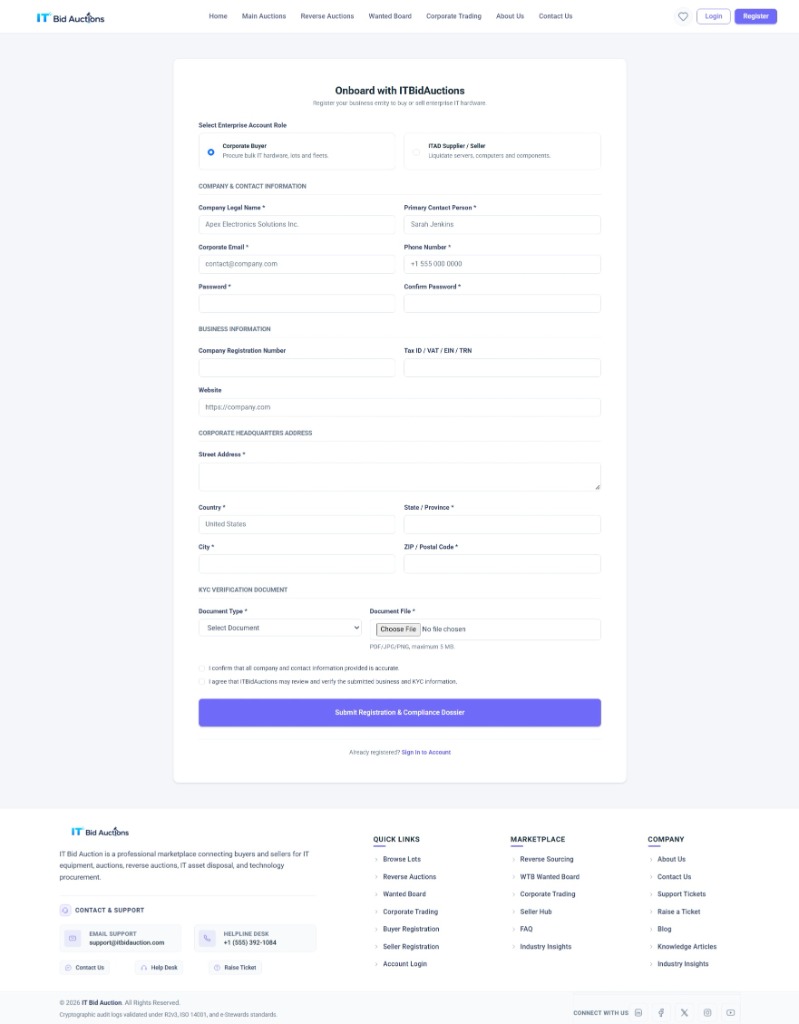
Select Your Enterprise Account Role
At the very top of the registration screen, choose one of the two role options:
- Corporate Buyer: Pick this if you are purchasing bulk IT hardware, servers, laptops, and networking components.
- ITAD Supplier / Seller: Pick this if you are liquidating enterprise hardware or listing consignment lots.
Enter Company & Contact Details
Fill in the primary contact and company credentials:
contact@company.com).+1 555 000 0000).Enter Business & Headquarters Information
Provide standard enterprise business identifiers and physical headquarters address:
- Company Registration Number & Tax ID (VAT/EIN/TRN): Your official tax or business registration ID.
- Company Website: Your corporate homepage URL.
- Headquarters Address: Street Address, Country, State/Province, City, and Postal/ZIP Code.
Upload Your KYC Verification Document
To protect against fraud, upload one official verification file:
- Document Type: Select Certificate of Incorporation, Business License, Tax Certificate, or Utility Bill.
- Document File: Click Choose File. Supported formats include PDF, JPG, PNG up to 5 MB in size.
Submit the Registration Dossier
Tick the two compliance checkboxes confirming information accuracy and verification consent. Then click the large purple button: “Submit Registration & Compliance Dossier”.
What happens next? Your dossier is immediately processed. You will be redirected to the Customer Portal Login page, and our administrative compliance team will verify your account.
Logging In to Your Portal
Once registered, accessing your dedicated procurement or inventory workspace takes only a few seconds.
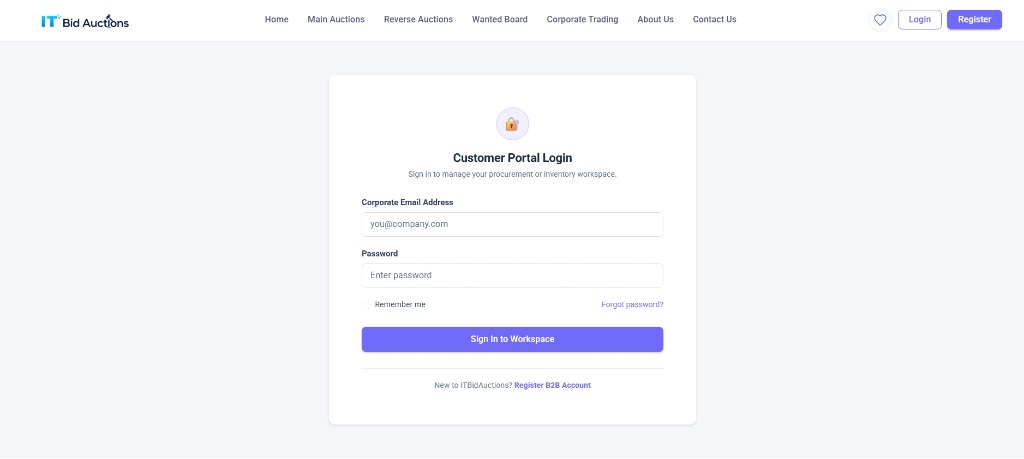
Step-by-Step Login Instructions:
- Click Login from the top-right corner of the website, or navigate to
/customer/login. - In the Corporate Email Address field, enter your registered email address.
- In the Password field, enter your account password.
- (Optional) Tick Remember me if you are using your private business device.
- Click the blue button: “Sign In to Workspace”.
Exploring Marketplace Channels
The homepage serves as your command center for searching lots and browsing opportunities across four distinct transaction formats.
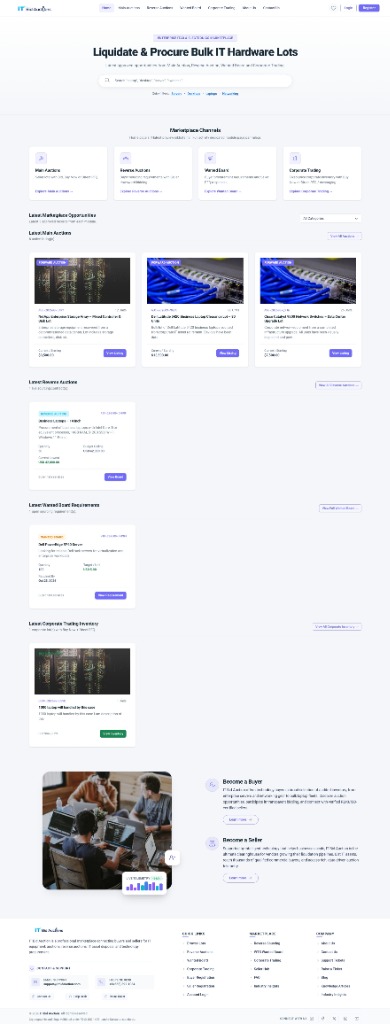
Designed for Every Hardware Need
The marketplace aggregates multiple liquidation and procurement models under one unified corporate interface. Use the live channels below to navigate directly:
Standard Forward Auctions
Sellers list hardware lots with a starting price, reserve price, and countdown clock. Buyers place increasing bids. The highest bidder at expiry wins.
Declining Bid Procurement
Buyers post volume equipment requirements with a budget ceiling. Certified sellers submit lower prices. The lowest compliant offer wins.
Continuous Sourcing Board
Buyers publish persistent hardware requests (*e.g., 50x Dell R740 servers*). Sellers review requests and send direct supply proposals.
Wholesale Inventory Liquidation
Bulk equipment and decommissioned office fleets listed for immediate fixed-price buyout or direct negotiation.
Top Navigation Bar Features
- Global Search: Search by brand, model, or category (*e.g., Cisco, Dell PowerEdge, GPUs*).
- Heart Icon (Wishlist): Save interesting lots to your private watchlist for quick reference later.
- Appearance Studio (Bottom Bar): Toggle between Light Theme and Dark Theme, or change your accent color palette (Ocean Indigo, Eco Green, Purple, Warm Gold).
Understanding Your Workspace Dashboard
Once logged in, the platform customizes your dashboard based on whether your account is a Buyer or a Seller.
The Buyer Workspace (`/buyer-dashboard`)
Your central cockpit for tracking equipment bids, sourcing contracts, and purchases:
The Seller Workspace (`/seller-dashboard`)
Everything you need to list hardware stock and monitor sales performance:
How to Participate in a Forward Auction
Forward auctions are standard auctions where buyers compete by submitting increasingly higher bids.
Step 1 – Find a Hardware Lot
Click Auctions in the top navigation bar. Use filters or category dropdowns (*Servers, Switches, Storage, Laptops*) to locate items of interest. Click on any lot title or image to open its detailed listing page.
Step 2 – Review Specifications & Condition
Check the photo gallery, cosmetic grade (*Grade A, Grade B, etc.*), quantity, test results, and manifest. Review the Current Bid and the remaining countdown timer.
Step 3 – Place Your Bid
In the transaction panel on the right side of the screen, locate the Place Forward Bid section:
- Note the minimum next bid displayed (e.g., Min $520.00).
- Enter your bid amount in the box. It must be equal to or greater than the minimum next bid.
- Click the blue “Place Bid” button with the hammer icon.
- The page updates in real-time to confirm you are the highest bidder!
Alternative Action: Use “Buy Now”
If the seller has enabled the Buy Now option, you do not have to wait for the auction countdown to finish! Simply click the green “Buy Now” button and confirm the modal to instantly purchase the entire lot.
Alternative Action: Start a Direct RFQ
Need custom freight, split volume, or customized terms? Click “Start RFQ” to open a direct, private messaging negotiation thread with the seller.
How Reverse Auctions Work
A Reverse Auction turns traditional bidding upside down to save buyers money!
The Difference in One Glance:
Step-by-Step for Buyers (Creating a Reverse Auction):
- Log in to your Buyer Dashboard.
- Click “Create Reverse Auction”.
- Enter the hardware title, required quantity, and detailed specifications.
- Set your Budget Ceiling (the maximum price per unit you are willing to pay).
- Set the Minimum Decrement (the minimum amount each competing seller must reduce their price by).
- Set the closing deadline and click Submit.
Step-by-Step for Sellers (Bidding on a Reverse Auction):
- From the top navigation, click Reverse Auctions.
- Browse active sourcing contracts and review the specifications and delivery timeline.
- Click “Place Lower Bid”.
- Enter your price per unit (it must be lower than or equal to the current lowest bid minus the minimum decrement).
- Click Submit Bid. If you are the lowest supplier when the event closes, the buyer will review and award the contract to you!
Wanted Board (WTB) & Corporate Trading
Beyond auctions, our marketplace supports continuous procurement and bulk inventory disposal.
Wanted Board (Want-to-Buy)
Looking for persistent recurring hardware supply? Verified enterprise buyers can broadcast volume requirements:
- Buyers specify manufacturer, model, desired specs, target price, and deadline.
- Sellers browse the board and click Supply Offer / Bid to fulfill orders immediately.
Corporate Trading & Fleet Disposal
Need to liquidate hundreds of off-lease workstations, decommissioned switches, or server racks?
- Sellers post complete pallets or fleets with serialized manifests.
- Buyers can execute immediate corporate Buy Now purchases or submit wholesale counter-offers.
Managing Your Profile & Support Tickets
Manage your company credentials, watchlist, security settings, and support requests directly from your customer profile.
Available Profile Management Tools:
How to Submit a Support Ticket
If you have questions about a lot, need freight assistance, or have billing inquiries:
- Click Help Desk or Raise Ticket in the footer, or go to
/customer/tickets/create. - Select a ticket priority (*Low, Medium, High*).
- Enter a descriptive subject and detailed explanation of your question.
- Attach relevant invoices or screenshots if applicable.
- Click Submit Ticket. Our support desk responds directly within your ticket dashboard.
Troubleshooting & Frequently Asked Questions
Quick answers to common situations you might encounter:
Ready to Get Started?
Join hundreds of certified enterprise organizations trading decommissioned fleets and enterprise hardware lots today.